
The problem → The solution
Visual discovery shouldn't slow down report design.
Power BI has a huge custom visual ecosystem, but finding the right visual can mean repetitive searches, pages of results and unclear pricing or quality signals.
Finding a visual is harder than it should be.
Traditional marketplace browsing can make it difficult to quickly narrow down the right option.
PBI VizFinder — discovery, redesigned.
One fast, searchable workspace for exploring the Power BI visual ecosystem.
Key Capabilities
Everything you need to find a better visual.
Built around the way Power BI developers, analysts and report designers actually search.
FAQ
Common questions about PBI VizFinder
1. What is PBI VizFinder?
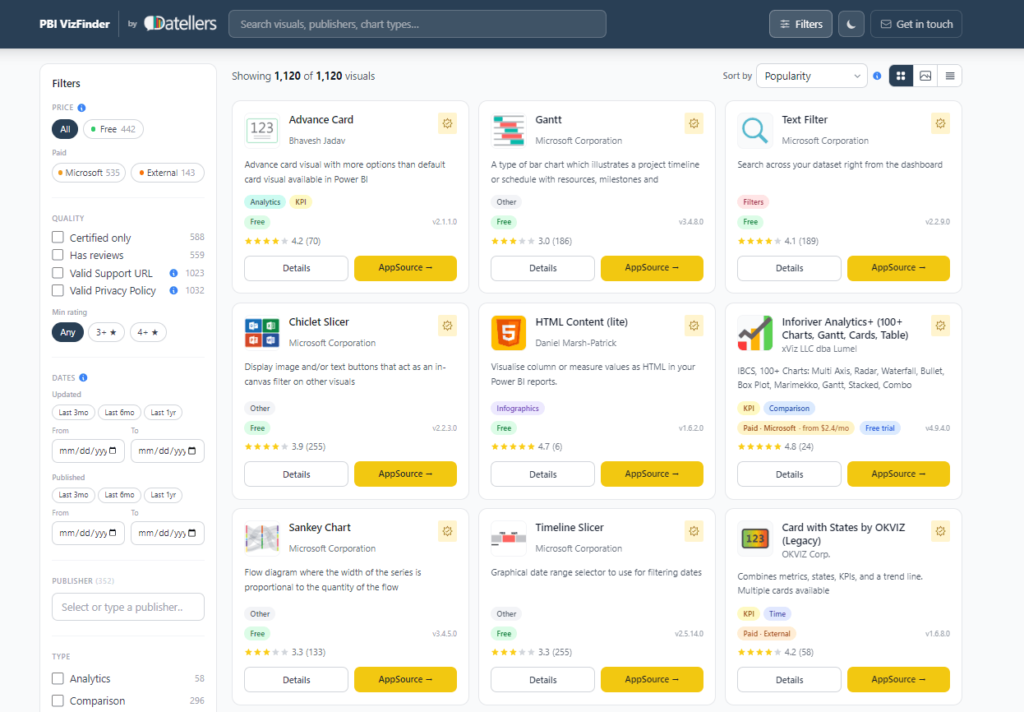
PBI VizFinder is a free tool from Datellers for browsing Power BI custom visuals. It lists 1,100+ visuals from Microsoft AppSource in one fast, searchable view. You can search by visual name, publisher or chart type, then filter and sort the results instead of opening listings one by one.
2. Is PBI VizFinder free? Do I need an account?
Yes, it is free and needs no account. Open the tool and start searching straight away. Many of the visuals listed are free too, and paid ones show their pricing on the card, including monthly prices and free trials where the publisher offers them.
3. What can I filter by?
You can filter by price (free, paid through Microsoft or paid externally), certification, reviews, minimum rating, visual type, industry, publisher, and both the updated and published dates. Types include KPI, Comparison, Time, Maps and Filters. Industries include Financial Services, Manufacturing, Healthcare & Life Sciences and Retail & Consumer Goods. Filters can be stacked to narrow the list quickly.
4. How can I sort and view the results?
Sort by popularity, average rating, review count, recently updated, recently added or name A to Z. You can also switch between three layouts and turn on dark mode. Each card shows the publisher, tags, price, rating, review count and version, with a Details button and an AppSource button that opens the official listing.
5. How can I check if a visual is safe and still maintained?
Use the quality and date filters. Tick Certified only, filter for a valid support URL and a valid privacy policy, and set the updated date to the last 3 months, 6 months or 1 year. Cards also show a warning badge when a visual's support or privacy link is dead, so you can spot risky or abandoned visuals before installing them.
Stop opening ten AppSource tabs to compare visuals.
PBI VizFinder is free open it now and filter the full catalog in seconds.
Opens in a new tab · No account needed